Configuration System Failed to Initialize on Windows
How to Solve? It's Easy!
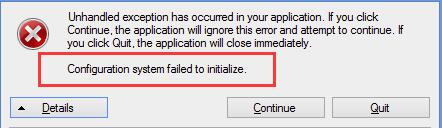 Some Users faced the problem Configuration System Failed to Initialize error appears on their Windows PC. Not to worry about it, this guide will be effective for you.......
Try one method at a time:
1. Run System File Checker tool
2. Check your Config file
3. Delete the old config file
Fix 1: Run System file checker tool
Corruptions of System files can cause Configuration System File to Initialize error. So we can run System file checker tool to fix the error.
a. First you need to run Command Prompt as administrator then click Yes when prompted.
b. On the Command Prompt window type sfc /scannow and hit Enter wait for till 100% complete.
This process will help you to restore corrupted files automatically.
c. When it's done close Command Prompt window and check if the error still exists.
2.Fix 2: Check your Config file
a.Open This PC or My computer from your desktop
b. Go to C:\Windows\Microsoft.NET\Framework64\v2.0.50727\CONFIG
c. Right click on config file of the app or software which exist the error. Choose Edit. (We recommend to use Notepad++ to modify)
d. When the Config file is open, check inside the Configuration element, ensure the first child is ConfigSections element.
If the error appears on your PC, the first child may probably isn't ConfigSections element inside the Configuration element. Then you can remove Configuration between <Configuration> and <ConfigSections>.
e. Save the changes on config file and close edit window. Check if the error still appears.
Fix 3: Delete the old config file
a. Open this PC or My computer from your Desktop.
b. Go to C:\Users\User name\AppData\Local\app name and delete the app config file.
c. Go to C:\Users\User name\AppData\Roaming\app name and delete the app config file.
d. Restart your App and check if the the error still occurs.
For More details Please Visit my Youtube Chanel Link
https://www.youtube.com/watch?v=XU68FReG7b8&t=39s
Learn how to install Windows Phone Apps manually Step by Step:
If you're running Windows Phone 8.1 and your phone supports an SD card, you can install apps directly to your SD card instead of your phone's internal storage. These apps will show up in the App list just like your other apps and games.
1. At first you need to download one or more .xap files to your Sd Card/MMC.
2. Then go to online , that means you should turn on data on your mobile.
3. In the app list tap Store Tile.
4. Tap more icon (…).
5. Then tap install local apps.
6. Select the apps you want then tap install.
7. That’s it you have successfully install apps manully.
Note : Free apps and games can used immediately and paid apps-games can be used after purchased.
If you have problems with your PC that can't run in any manner. You Can Use System Recovery Tools to Fix this Problem. Bootrec.exe that the tool can fix your Problem. It can help you to troubleshoot and fix the Master Boot Record (MBR) , the boot sector or the Boot Configuration Data (BCD) store.
Here Is The Step by Step guidelines that can help you :
Bootrec.exe - The Ultimate Repair Tool For Boot Problems
No matter whether you use Windows 7 or Windows 8/8.1 , if your Operating System trouble booting and Start-Up Repair can't fix the Problem , It's worth trying the Bootrec.exe Tool.
To use this tool you'll have to use Command Prompt. Because you have already start-up problems , in this case you won't be able to run your PC. So you Should use Command Prompt.
If you are on Windows 7 , first boot it with your Installation Disc or a System Repair Disc. Then Launch Command Prompt.
In case you are using Windows 8 or 8.1 follow the steps described in this tutorial - third , fourth and fifth sections. You will be able to use Command Prompt either from the Advanced Options or from the Safe Mode Interface.
If you Successfully launched the Command Prompt , then type bootrec.exe and hit Enter to see available options for this tool. As you can see below the screenshot there are Four methods available : FixMbr/ , FixBoot/ , ScanOs/ and RebuildBcd/.
After that we'll see how each of them can help to solve boot problems. Keep in mind that processes can handled most boot problems , it does not guarantee success in every scenario.
How to Repair The Master Boot Record (MBR) :
The first parameter of bootrec.exe is Fixmbr/. It allows to repair corrupted or damaged Master Boot Record (MBR). It is the first sector of HDD and it tells the BIOS where to look for the Operating System on your Computer. Normally you can use this Parameter if you meet one of these ''Error Messages'' -- ''Operating System Not Found'' , ''Error Loading Operating System'' , ''Missing Operating System'' , or ''Invalid Partition Table''.
To start this Process Run Bootrec.exe / fixmbr :
How to write a New Boot Sector :
/Fixboot Parameter writes a new boot sector to the System Partition. It will use a boot sector that is compatible with your Operating System Version whether it is Windows 7 , 8 , 8.1. It is usefull for the following situations :
1. The boot Sector has been replaced with a non-standard Windows Vista , 7 , 8 , 8.1. boot sector.
2. The boot Sector is Damaged.
3. An earlier version of Operating System has been installed after your version of Windows Installed.
To Start writing new boot sector run the Command : bootrec.exe / fixboot :
How to Rebuild the Boot Configuration Data (BCD) :
BCD Contains a detailed list of what is supposed to load at Start-up. Microsoft tells that a missing or damaged of BCD files can caused the boot error Problems. The /Rebuild Parameter is very useful when you must fix some problems by completely rebuilding the BCD.
To Completely Rebuild the BCD run the Command : bootrec.exe / rebuildbcd
How to add missing Windows Installation to the BCD :
If you have multiple Operating System has Installed but not all are available , use the /scanos option.
Using this Parameter scan of all operating has installed on your Disk , such as Windows Vista , 7 , 8 , 8.1
that are currently included in the BCD.
To add missing windows installation run the command : bootrec.exe / scanos :
If the bootrec.exe /scanos returns results , you will be able to continue the repair process. After that , you will get the lost windows installation back into the secure BCD table. Thus making it bootable again.
At first you have to clean Master Boot Record (MBR) by using bootrec.exe /fixmbr. Then type bootsect.exe /nt60 all /force and then press Enter. The /nt60 Parameter applies the Master Boot Code which is compatible with BOOTMGR. The /all argument updates the boot code to all Partitions. The /force parameter forcibly dismounts the Volumes during the boot code update as because the bootsect.exe tool does not gain exclusive access to the volumes.
Running all these commands will create new Master Boot Record (MBR) , to use the correct windows boot loader to load that specific installation from your drive.
Conclusions :
From this tutorial you learn that the Bootrec is a powerful tool that troubleshoots and repairs your computer boot records.If you have any questions , don't hesitate to leave comment. I'll try my best to help you.


